
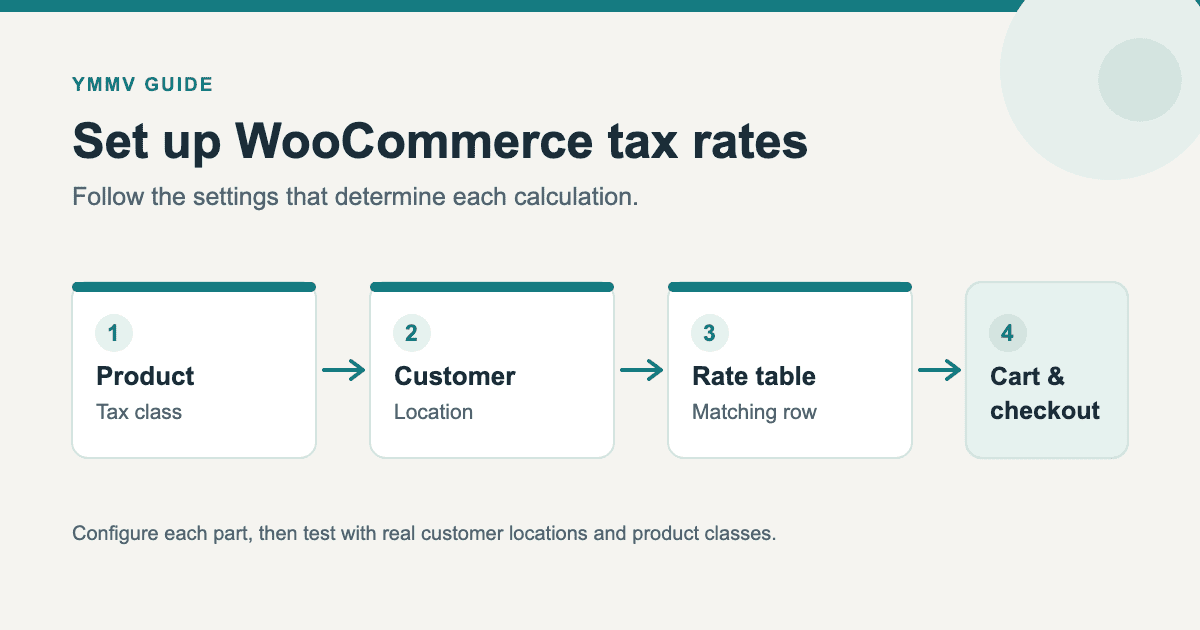
WooCommerce can calculate tax from the product's tax class, a customer's location, and the rate rows you enter. The difficult part is making those settings agree. A perfectly valid rate in the wrong class, or a customer address that does not match your table, can produce an unexpected checkout total.
This guide shows you how to configure manual WooCommerce tax rates and test the result. It follows WooCommerce's current tax setup documentation. It does not determine where you must register, which products are taxable, or what rate you must charge. Confirm those decisions with your tax adviser and the relevant tax authority before entering live rates.
Before opening the tax settings
Make a short list of the locations where your business is required to collect tax, the tax treatment of each product group, and how shipping should be treated. Those are tax decisions, not WooCommerce defaults. A location-based rate table cannot correct an incorrect tax obligation or product classification.
Keep a record of the official rate source and the date you checked it. Rates and product classifications can change. For example, the UK government's VAT rates page lists standard, reduced, and zero rates, while the European Commission explains that EU member states set their own VAT rates within the EU framework. Neither page tells you that a particular sale in your store is taxable.
If your store uses an automated tax extension, check which settings it controls before editing manual tables. WooCommerce Tax is designed to automate tax calculations in supported countries and can make manual rate management unnecessary for that workflow.
Step 1: Enable taxes in WooCommerce
- In WordPress admin, go to WooCommerce → Settings → General.
- In Taxes and coupons, select Enable tax rates and calculations.
- Save changes. The Tax tab should now appear in WooCommerce settings.
Enabling tax calculation does not create the rates you need. It makes the tax options and rate tables available.
Step 2: Choose how prices and customer locations work
Open WooCommerce → Settings → Tax → Tax options. The most important choices before entering rates are:
- Prices entered with tax: Choose whether your stored product prices include or exclude your store's base tax. Changing this after products have prices can change how WooCommerce interprets those numbers; review prices before switching a live store.
- Calculate tax based on: Choose customer shipping address, customer billing address, or shop base address. This controls which location WooCommerce uses to find a rate. Choose the basis that matches your obligations and checkout workflow.
- Display prices in the shop and during cart and checkout: These control what customers see, separately from how the tax is calculated. WooCommerce warns when the price-entry and display choices conflict because mixed modes can produce rounding surprises.
The WooCommerce explanation of inclusive and exclusive price calculations is useful before changing a store with existing prices. Shipping prices are entered excluding tax even when product prices are entered inclusive of tax.
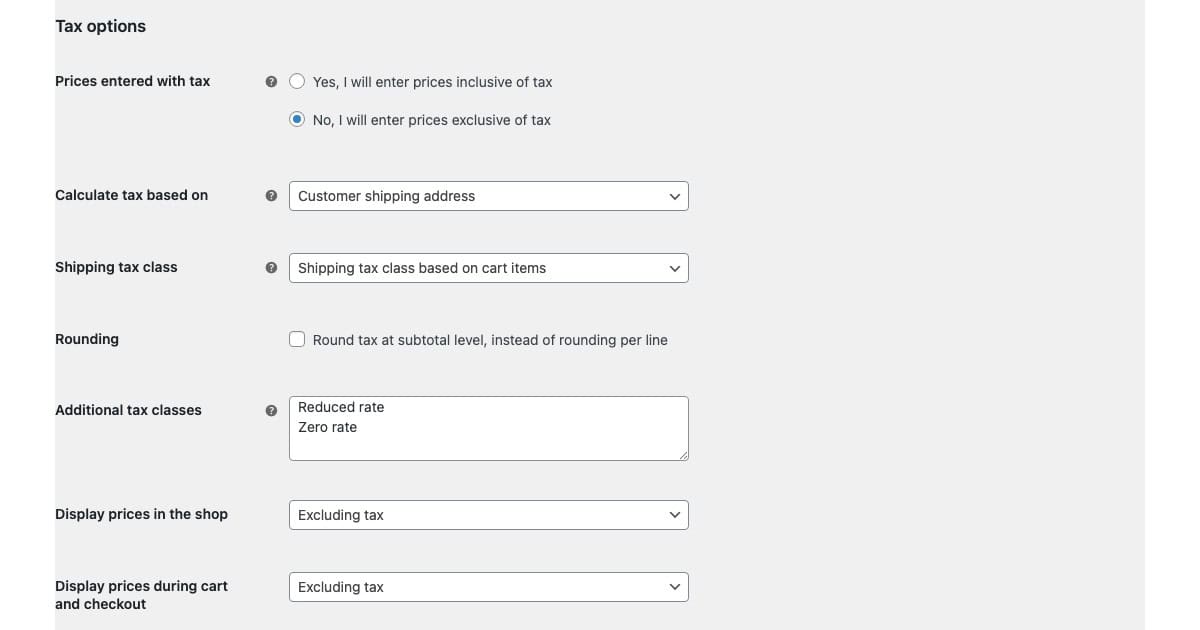
This is an exact crop of the source article's local WooCommerce admin example. Your screen may look different if your WooCommerce version or extensions differ.
Step 3: Set up tax classes for product groups
Each taxable product uses a tax class. Standard rates is always available; you can add other classes, such as Reduced rate or Zero rate, under Additional tax classes in Tax options. Save changes to make each class's rate table appear as a subtab.
A class is a way to group rate rows. It is not a declaration that a product legally qualifies for a reduced or zero rate. Assign classes only after checking the product's treatment with the appropriate authority or adviser.
On the product edit screen, check Product data → General → Tax status and Tax class. A non-taxable product will not acquire tax just because a matching rate exists in a table. A taxable product assigned to the wrong class will use the wrong table. Review variations and extension-managed product data where your store uses them.
Step 4: Add a rate to the correct table
Open WooCommerce → Settings → Tax, then select Standard rates or the additional class you need. Select Insert row, enter the rate, and Save changes.
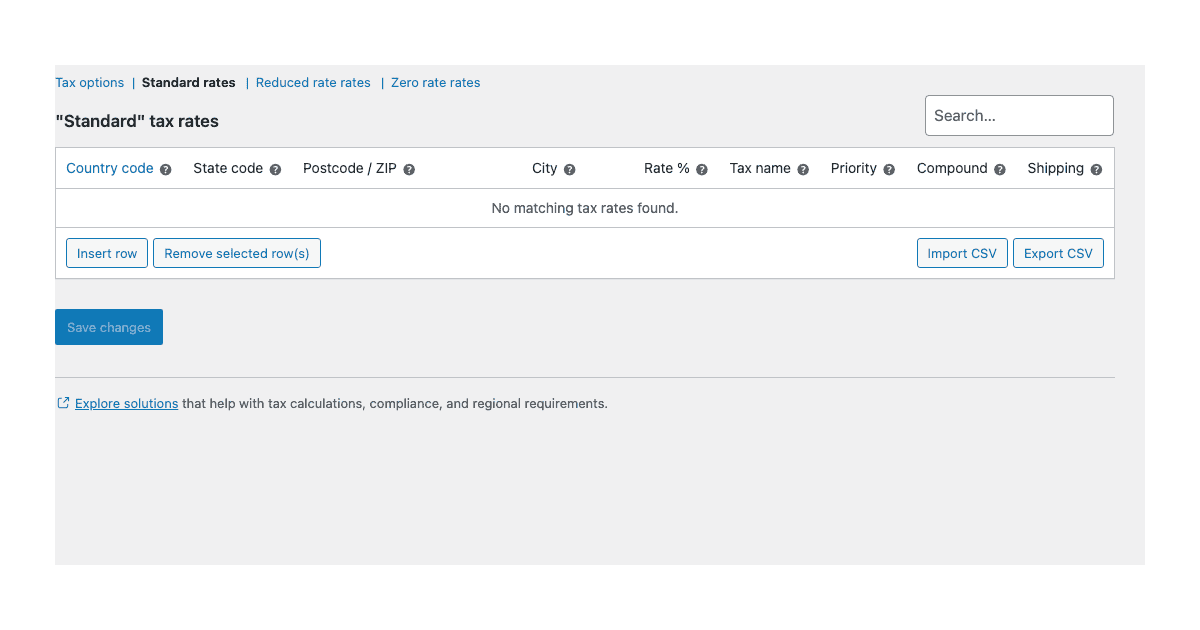
This is an exact crop of the source article's empty rate table, shown to identify the fields rather than provide rates to copy.
The rate row fields are:
| Field | What it controls |
|---|---|
| Country and state | The locations the row can match. Use the codes supported by WooCommerce, or * only when a genuinely broad rule is intended. |
| Postcode/ZIP and city | Narrow the match. WooCommerce supports postcode prefixes and ranges; city matching is exact. |
| Rate % and tax name | The percentage calculated and the label shown when tax totals are itemized. |
| Priority | WooCommerce uses the first matching rate at each priority. Use separate priorities only when rates should stack. |
| Compound | Applies a tax on top of prior taxes when your rules call for that calculation. |
| Shipping | Determines whether this rate also applies to taxable shipping. |
The official rate-table guide explains every field and the supported location patterns. Do not add a global * rate just to make tax appear in a test order: it could match customers outside the locations where you intended to collect it.
An illustrative UK standard-rate row
As of 25th September 2026, the UK government lists standard VAT at 20%. If your adviser has determined that a particular product sale should receive that rate, a simplified *example* Standard rates row could use country GB, wildcard state/postcode/city fields, rate 20, name VAT, and priority 1. Check the Shipping box only if the applicable shipping treatment calls for it.
That row is an illustration of the WooCommerce fields, not a recommendation to charge 20% VAT to every UK customer or product. Reduced, zero-rated, exempt, cross-border, and other cases need their own decisions and tests.
Step 5: Check shipping tax and rounding
In Tax options → Shipping tax class, WooCommerce can base shipping tax on cart items or use a specified class. With the cart-items choice, a Standard-class item takes precedence; otherwise WooCommerce uses the first applicable class in Additional tax classes. The WooCommerce tax settings guide explains the mixed-cart behavior.
The Shipping checkbox on each rate row also matters. A correct product rate does not guarantee the shipping tax is correct. Test carts that combine product classes if you sell them.
Round tax at subtotal level changes whether WooCommerce rounds per line or at the subtotal. Small differences can be expected. Choose the method required for your store, and investigate larger differences before blaming rounding.
Step 6: Test a complete order
Use a test product and several customer addresses before relying on a new rate table. Check at least:
- A location and product class that should match the new rate.
- A location that should not match it.
- A product in each additional tax class you use.
- A cart with shipping, and a mixed-class cart if relevant.
- The product page, cart, checkout, and order details for consistent amounts and labels.
If a rate does not appear, check that taxes are enabled, the product is taxable, the product uses the intended class, the rate row matches the address WooCommerce is using, and the row was saved. WooCommerce's core-tax troubleshooting guide covers these checks and notes how default customer location and automated tax extensions can affect results.
If you have many rates, WooCommerce can import and export CSV files. Enter one row and export it to obtain the expected column format. Review every rate against a current official source before importing; WooCommerce warns that its sample CSV is not suitable for live use because rates change.
Tax calculation and price display are separate
A rate table determines a calculation for a matching order. Price display settings determine whether shoppers see inclusive or exclusive prices on shop, product, cart, and checkout screens. Changing the display does not change your tax obligations.
For the customer-facing side, read our guide to showing prices with and without tax in WooCommerce. Set up and test the underlying rates first; then decide how to present those totals to shoppers.