
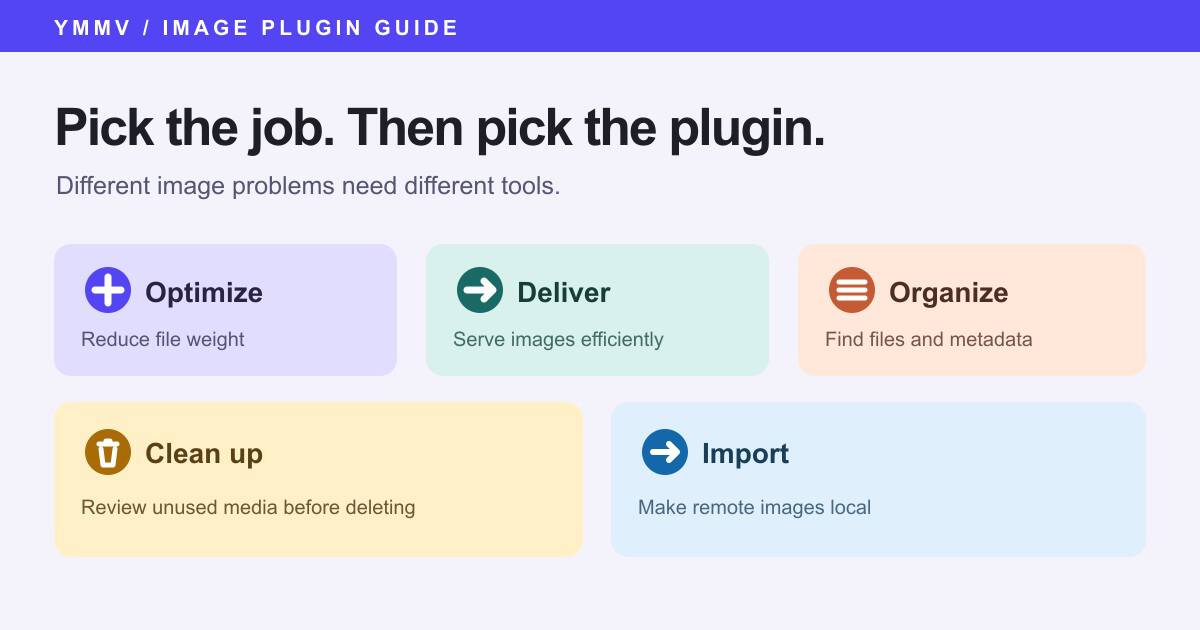
Searching for a WordPress image plugin can lead you to a long list of compressors. Compression is useful, but it does not organize a crowded Media Library, remove unused uploads, or bring images hosted on another site into WordPress.
Start with the job you need done. This guide compares the plugins' published features as of 26th September 2026. It is a shortlist by use case, not a speed benchmark or a hands-on test of every plugin.
YMMV makes Automatically Import External Images, which appears in the import category; the other products are independent.
Quick comparison: which image job do you have?
| Your main problem | Start with | Check before installing |
|---|---|---|
| Uploaded files are too large | Smush, ShortPixel, EWWW, or Image Optimization by Elementor | Format support, processing location, bulk limits, and paid features |
| Images reach distant visitors slowly | Your existing CDN or a delivery feature in your optimizer | Whether your host or CDN already handles this |
| The Media Library is hard to search | Media Library Assistant | How your team will use categories, tags, and metadata |
| You need to find unused files | Media Cleaner | Its scan results and recovery process before deleting anything |
| Posts contain remote image URLs | Automatically Import External Images | Whether you need import on save or a one-time migration |
| You have a list of image URLs, CSV, or WordPress XML | URL Image Importer | Whether you also need existing post content updated |
WordPress already adds lazy-loading attributes to many images. Check what your theme and current performance stack do before installing a separate plugin solely for that feature. WordPress documents the default behavior.
File optimization, delivery, library management, and importing solve different problems. A plugin can cover more than one job, but a feature list does not tell you whether it fixes the issue on your site.
The comparison uses the developers' current listings and points out where a paid plan, account, or server feature matters.
For compression and modern image formats
Smush: a broad image optimization workflow
Smush combines image compression, bulk tools, and lazy loading. Its listing identifies automatic WebP/AVIF delivery and its image CDN as Pro features. The free version skips images over 5 MB.
It is a practical starting point when you want one familiar interface for several image performance tasks. If you already have a CDN or lazy-loading setup, review the overlap before turning on every feature.
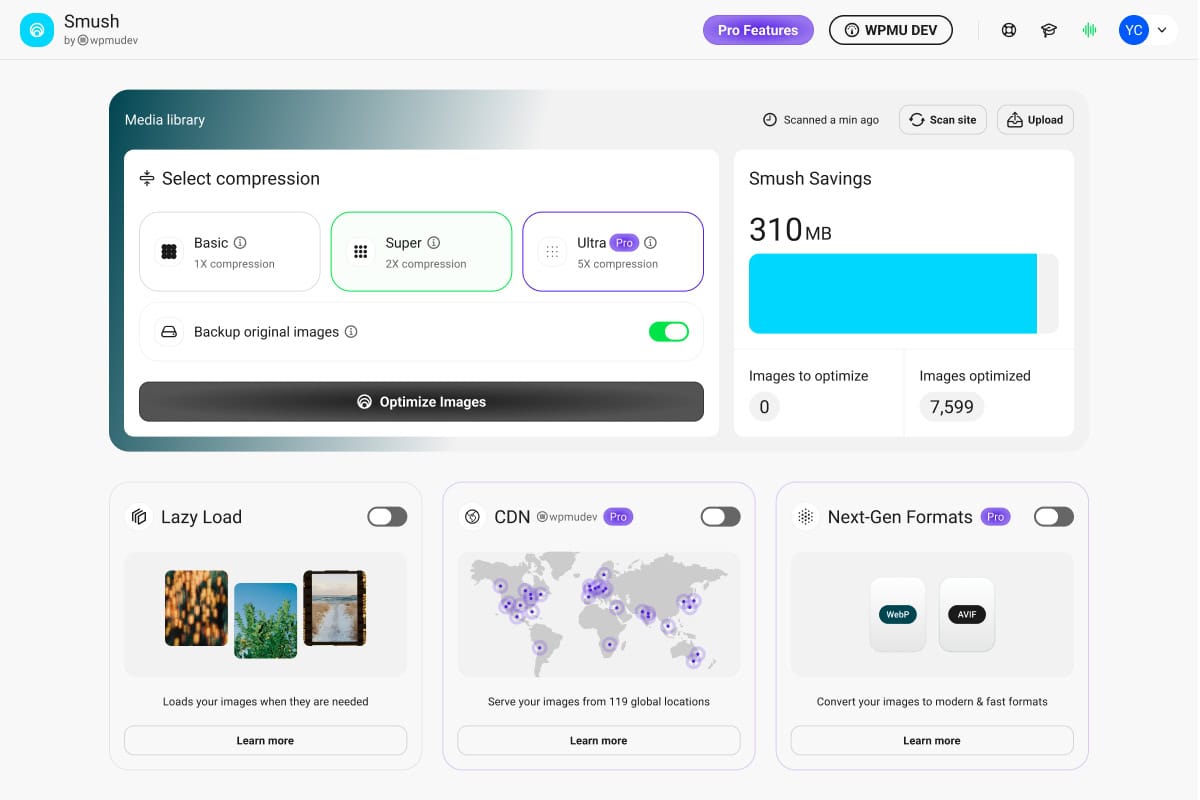
*Screenshot: Smush on WordPress.org, by WPMU DEV. This is the developer's example interface, not a YMMV speed or savings result.*
ShortPixel: detailed optimization controls
ShortPixel Image Optimizer supports bulk processing, WebP/AVIF conversion, resizing, and background processing. It sends images to ShortPixel's cloud for optimization and also offers CDN delivery. Its credit system can count generated thumbnail sizes separately, so estimate the whole library before buying credits.
ShortPixel makes sense when you want to tune compression and process an existing library, especially if you are comfortable managing an external service account.
EWWW: an option for local processing
EWWW Image Optimizer offers a local optimization mode and WebP conversion. Its WordPress.org page notes that local tools need a compatible server and PHP exec() access; it can use its API when the host cannot run those tools. AVIF delivery is among the premium options described there.
Choose it when processing location matters to you, then confirm what your host permits. “Local” is a configuration and hosting question, not a promise that every EWWW feature runs entirely on your server.
Image Optimization by Elementor: account-based processing
Image Optimization by Elementor supports bulk optimization, resizing, and WebP/AVIF conversion. It works as a standalone WordPress plugin, but requires an Elementor account and sends compatible images to Elementor's service for processing. You do not need to use the Elementor page builder to use it.
That can be a convenient workflow if you are happy with external processing. If image data must stay on your server, choose a suitable local workflow instead.
For Media Library organization and cleanup
Media Library Assistant extends the Media Library with taxonomy filters, more searchable fields, and quick or bulk editing of attachment information. It fits a team that needs to find and classify existing files. It does not compress them.
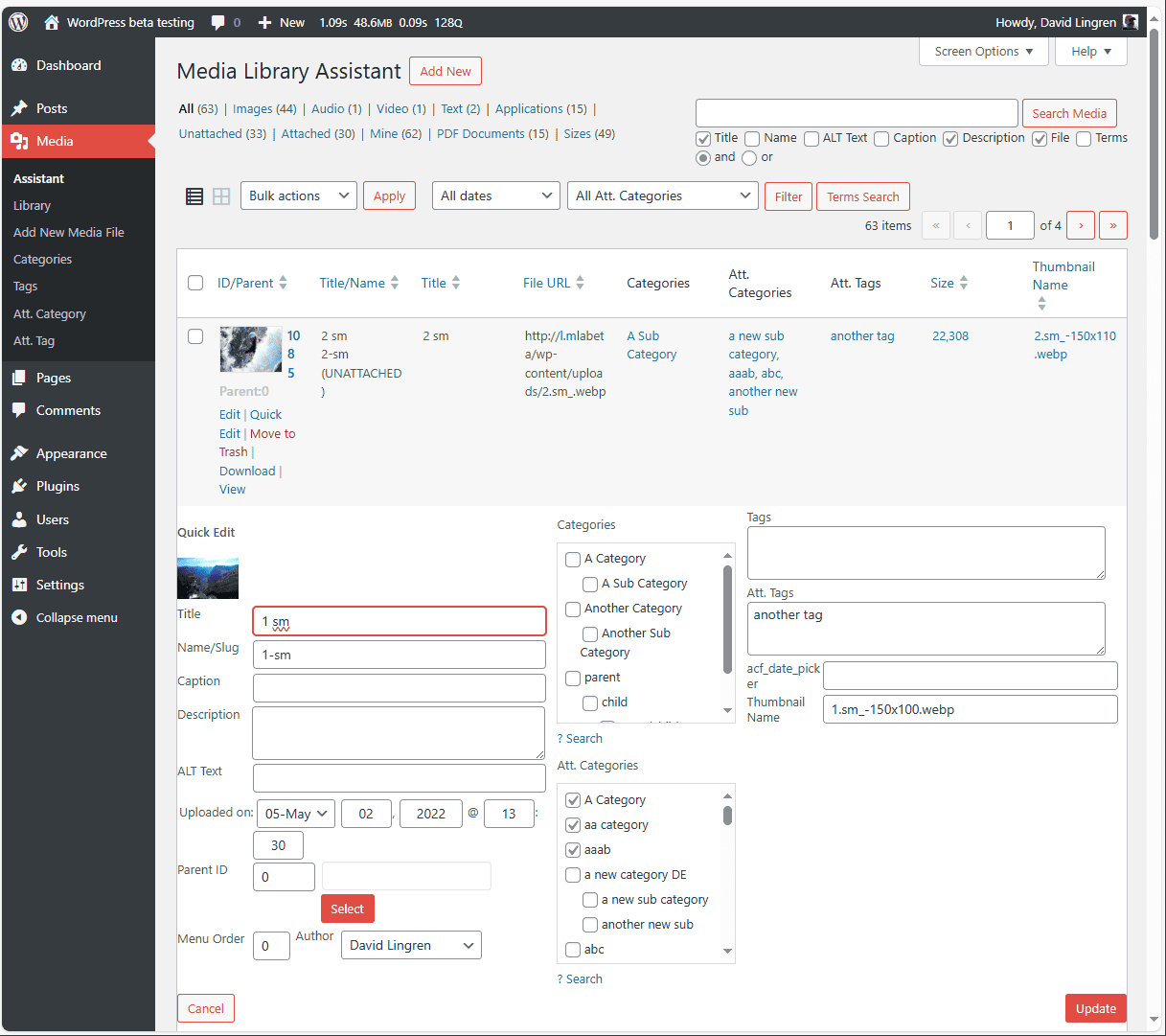
*Screenshot: Media Library Assistant on WordPress.org, by David Lingren. It illustrates the plugin's controls; the current screen may differ from this directory image.*
Media Cleaner scans for apparently unused media and broken entries. It has an internal trash for reviewing results before permanent deletion. Its listing says extra support for complex builders and custom-field plugins is in Pro. Check what the scanner can see on your site, inspect its findings, and keep a recoverable copy before removing files.
These solve different problems. Organization helps people find images; cleanup helps identify candidates for removal.
For external images and migrations
An image embedded from another domain may display in a post while the file remains outside your Media Library. WordPress's Image block documentation explains how to import an externally linked image manually. For a large editorial workflow, the method you choose depends on where the URLs live.
Automatically Import External Images is YMMV's plugin for importing supported external images when content is saved. It brings them into the Media Library and replaces remote URLs in supported content. Use it when editors repeatedly paste remote images into posts or product content. It is an importer, not a compressor, CDN, or automatic scan of every historical post. Already broken source URLs cannot be recovered by downloading them after the file has disappeared.
URL Image Importer imports files from image URLs, CSV lists, or WordPress XML exports into the Media Library. Its listing offers a URL mapping CSV after batch imports. Choose this route when you have an explicit source list or migration file. Confirm how you will update old post URLs afterward; importing the file alone does not prove existing content points to it.
For the manual, scripted, and save-time options, see how to import hosted images. If save-time importing fits your workflow, review Automatically Import External Images and test it on a few representative posts first.
A sensible selection process
- Inspect five real pages. Identify oversized uploads, slow delivery, messy library records, unused files, or remote URLs. Several problems can coexist.
- Choose one primary job. Avoid activating overlapping compressors or CDN rewrite features at the same time without a reason.
- Check current terms. Free features, paid tiers, credits, and CDN allowances change. Use each plugin's official page before paying or migrating a large library.
- Try a small sample. Measure image dimensions, file weight, visual quality, and page loading before and after. Review the result on mobile as well as desktop.
- Plan reversible bulk work. Keep a restorable copy before replacing URLs or deleting files, and review a batch before processing the full site.
The best WordPress image plugin is the one that addresses the image problem you have identified. Start with that task, verify its result, and add another tool only when it solves a second distinct problem.