
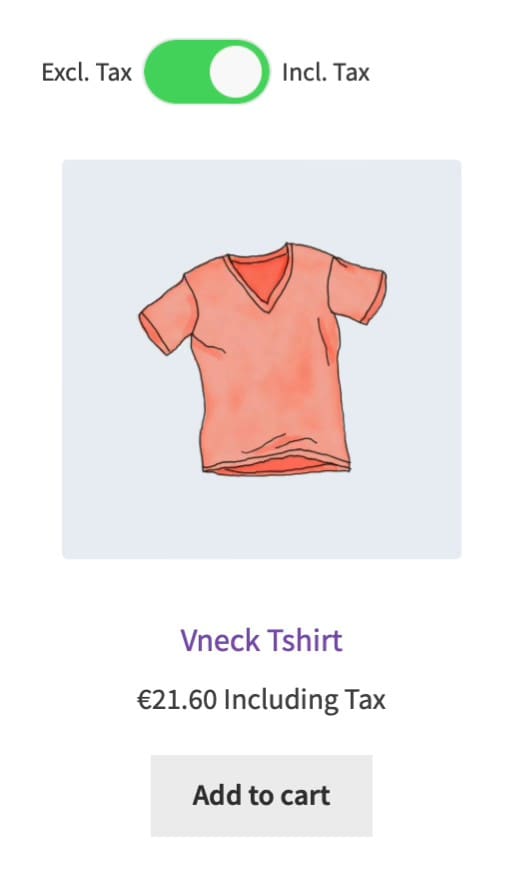
To show products with and without tax in WooCommerce, first decide whether customers need to see both figures at once or choose between them. Retail shoppers often look for the total price including VAT. Business buyers may compare the price excluding VAT. WooCommerce gives you several ways to present those figures, from a single store setting to a switch customers can use while browsing.
Price display is separate from tax calculation. Showing a price without tax does not make a customer tax exempt or change what the store must charge. Check your tax rates, customer locations, and obligations with a qualified adviser before changing a live store.
Start with the WooCommerce tax settings
In WooCommerce → Settings → General, enable tax rates and calculations. Then open WooCommerce → Settings → Tax. WooCommerce's tax settings guide explains each option.
Check these three settings first:
- Prices entered with tax: Tell WooCommerce whether the product prices you enter already include tax.
- Display prices in the shop: Choose whether catalogue and product prices appear including or excluding tax.
- Display prices during cart and checkout: Choose how prices appear later in the purchase journey.
The two display settings can differ, but WooCommerce warns that mixing the price-entry and display methods can cause rounding differences. Test the result with your actual tax classes, product types, and customer locations. A display plugin cannot repair a tax setup that starts with the wrong price-entry setting.
Option 1: Show one price format across the store
If most customers expect the same presentation, use WooCommerce's built-in display settings. A consumer-focused store might show tax-inclusive prices in the shop; a trade-focused store might show tax-exclusive prices. Label the chosen format clearly and check the cart and checkout separately.
This is the simplest option. It does mean customers who prefer the other view must work it out themselves or wait until checkout.
Option 2: Show both figures with the price suffix
WooCommerce's Price display suffix field can add the other amount after the main price. It supports {price_including_tax} and {price_excluding_tax}. For example, if the main shop price excludes tax, a suffix such as ex VAT · inc VAT: {price_including_tax} can show both figures on a product page.
The WooCommerce documentation says the suffix also stays with the selected price when a shopper chooses a variation. Check how your theme and any pricing extensions render it, especially on compact product cards and sale prices.
Use a suffix when you want both prices visible at once and the extra text fits your catalogue design.
Option 3: Build a custom display
A developer can filter WooCommerce's price HTML and show tax-inclusive and tax-exclusive amounts in a custom layout. This offers precise control, but it also has to account for variable products, sales, customer location, dynamic pricing, and other extensions. A snippet that looks correct on one simple product is not enough evidence for a whole store.
Use this route when you have a developer who can maintain and test it. Keep the calculation in WooCommerce; custom code should only change the presentation.
Option 4: Let customers switch their price view
For a mixed retail and trade audience, a toggle can keep product grids readable while giving each customer the view they need. Tax Toggle for WooCommerce provides a front-end control for switching between tax-inclusive and tax-exclusive product prices. It uses the store's existing WooCommerce tax configuration and supports a floating control, a block, a shortcode, and a widget for placement.
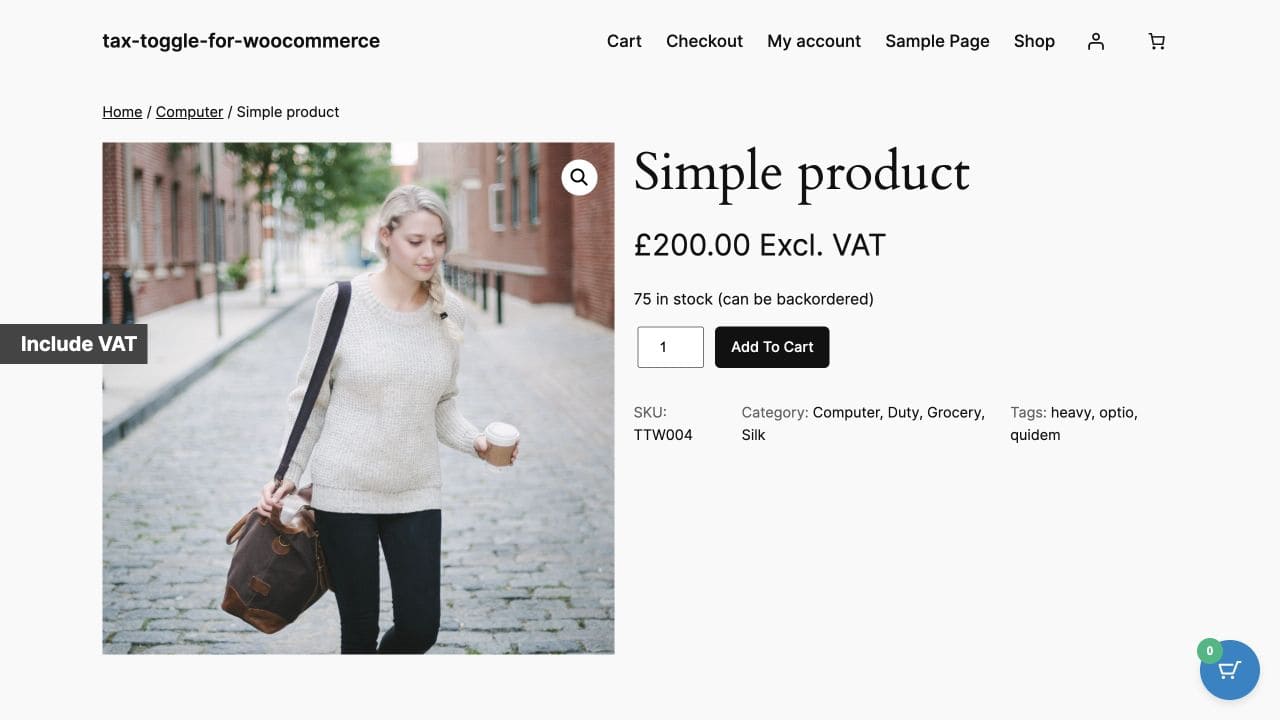
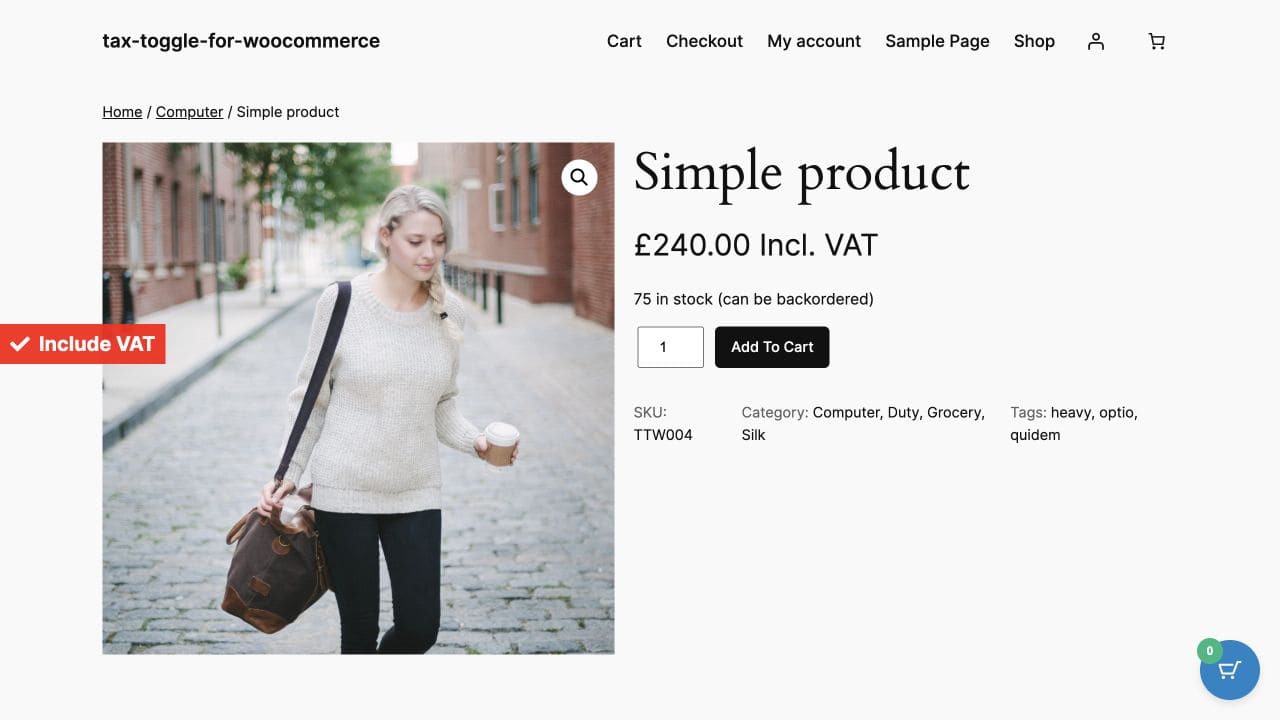
Here is the same product in a local WooCommerce demo before and after the customer switches the price view. The configured 20% VAT rate changes the displayed price from £200 excluding VAT to £240 including VAT; the store’s tax calculation still controls the order total.
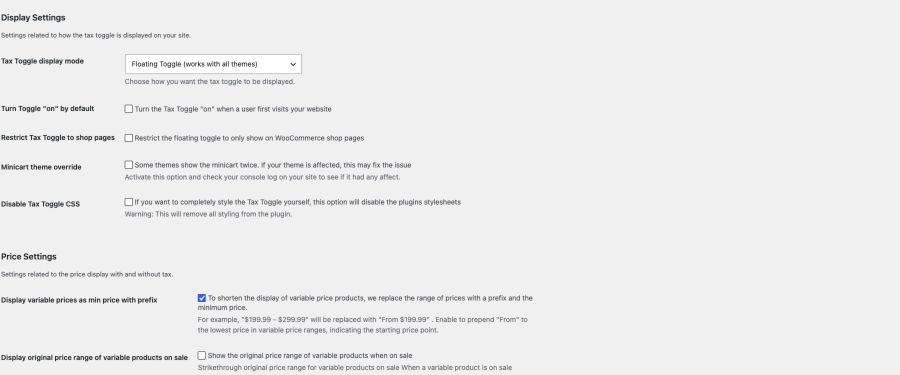
The plugin’s display settings let a store choose the floating toggle or a control placed with a block, widget, or shortcode. They also set the default view and optional shop-page restriction.
The toggle changes the display, not tax liability. The current plugin handles standard product prices and includes mini-cart and some cart display handling. Checkout amounts and tax calculation remain governed by WooCommerce settings, so test the full purchase journey with your theme before relying on a particular presentation.
A toggle is useful when customers need different browsing views but showing two amounts on every product card would make the catalogue crowded.
Which approach fits your store?
| What customers need | Approach | Main tradeoff |
|---|---|---|
| One price format for most buyers | WooCommerce shop and checkout display settings | Buyers who prefer the other view cannot switch it themselves. |
| Both figures visible together | WooCommerce price display suffix | Extra text can crowd product cards. |
| A layout tailored to the store | Custom price display code | Requires ongoing testing across product types and extensions. |
| A choice between views | Tax Toggle for WooCommerce | Buyers see one view at a time; test the full purchase journey. |
Whichever route you choose, test simple and variable products, sale prices, the mini-cart, cart, checkout, mobile layouts, and guest and logged-in views. Check the actual order totals as well as the labels. The final amount must remain clear to the customer.