
If your WordPress posts contain external image URLs, you have two problems.
The visible problem is obvious: those images can break when the remote file disappears.
The quieter problem is workflow. Someone has to notice the external image, download it, upload it to WordPress, replace the URL, check the post, and remember to do it again next time.
That is fine once. It is not fine as a publishing process.
Auto-importing images means WordPress detects external images, copies them into your Media Library, and updates the content to use local WordPress files. Done properly, it turns a fragile manual checklist into a repeatable workflow.
The workflow in full: external image URLs are detected, imported, attached, and the post content is updated — all on save.
This guide explains how the workflow should work, what to check before enabling it, and where Automatically Import External Images fits.
What auto-importing images means in WordPress
Auto-importing images is not the same as displaying an image from a URL.
WordPress can show a remote image in a post using Insert from URL. The official Image block guide explains that images left at the source URL are not saved into your Media Library. If that source disappears, the image can disappear from the post or page.
Auto-importing fixes that by doing the missing work:
- Find external image URLs in content.
- Download the image files.
- Save them as Media Library attachments.
- Replace the external URLs with local WordPress URLs.
- Leave the post using images your site controls.
The goal is a reliable publishing workflow that does not depend on someone remembering a manual import step.
Manual upload, manual import, bulk import, and auto-import are different
A lot of image-import advice gets muddy because several workflows sound similar.
They are not the same.
Manual upload
Manual upload means you already have the files on your computer and upload them through Media > Add New or directly through the editor.
The Media Add New screen supports single and multi-file uploads from your local computer. Useful, but it does not help much when the images are already embedded as remote URLs inside existing posts.
Best for:
- New media you already have locally.
- Small numbers of files.
- Hand-curated images.
Manual external image import
The WordPress Image block can import an external image into the local Media Library after you insert it from a URL. WordPress then updates the Image block to point at the local file.
For that one-image workflow, see our guide to importing hosted images from external URLs. This article focuses on automatic importing during the normal publishing process.
Best for:
- One-off fixes.
- A few Image blocks.
- Editors who are already reviewing each post manually.
Not best for:
- Page builder content.
- Product descriptions.
- Old imported posts.
- Teams publishing regularly from other tools.
Bulk import
Bulk import usually means processing lots of existing content at once. That might be a migration from another site, a CSV/XML import, or a cleanup of old posts.
Best for:
- One-time migrations.
- Large existing archives.
- Controlled cleanup projects.
Bulk work needs more caution: backups, staging, logs, limits, and review. Changing hundreds of posts blindly is how a quick task becomes “why is the homepage full of broken thumbnails?”
Auto-import on save
Auto-import on save means the site scans content when it is saved and handles external images automatically.
Best for:
- Ongoing editorial workflows.
- Writers pasting content from other tools.
- WooCommerce/product content.
- Page builder content.
- Teams that want the problem prevented, not found later.
This is where Automatically Import External Images is the natural fit. It processes content when it is saved and imports external images into the Media Library without making editors perform a separate manual step.
When you should auto-import images
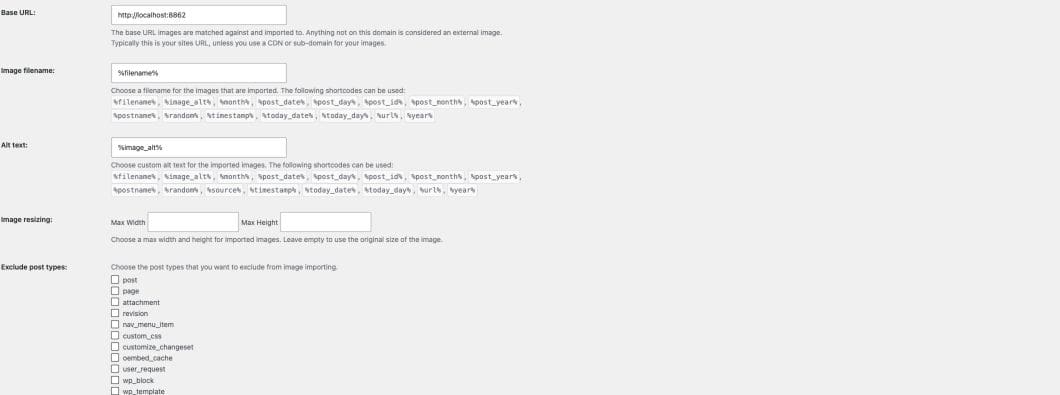
Here are the import settings in a local installation of Automatically Import External Images. The settings define the local base URL, filename pattern, and alt text pattern.
Auto-importing is useful when external images keep entering your site through normal work.
Common examples:
- Writers paste drafts from Google Docs, Notion, or other editors.
- Product teams paste supplier descriptions with hosted images.
- Content is migrated from another CMS.
- A page builder layout contains remote assets.
- WooCommerce product content includes images hosted elsewhere.
- AI-assisted drafts include external image references.
- Old posts were imported with image URLs but not local media attachments.
If this happens once, manual cleanup is fine.
If it happens every week, you need automation.
Before you enable auto-importing
Automation is only useful if the rules are sane. Do these checks first.
Confirm you have permission to copy the images
Auto-importing downloads images and stores them on your site. Only do that for images you own, are licensed to use, or otherwise have permission to copy.
Do not treat “the image URL loads in a browser” as permission. It is not.
Back up the site
If you are running automation on existing content, take a database and uploads backup first. Use staging for bulk cleanup if the site matters.
The import process touches content URLs and creates attachments. That is normal, but normal things still deserve a rollback plan.
Review the source domains
External images may come from places you trust and places you absolutely do not want in your Media Library.
You may want to import from:
- Old domains you own.
- Client asset hosts.
- Supplier image domains you are licensed to use.
- Internal tools used by your editorial team.
You may want to exclude:
- Your own CDN if those URLs are intentionally external.
- Tracking pixels.
- Badge providers.
- Specific third-party hosts you do not want to import from.
- Image services you do not have rights to copy from.
In the current version of Automatically Import External Images, Excluded domains blocks named hosts during normal image imports. Allowed domains is checked only when Allow image import from URLs without file extensions is enabled. With that option off, an ordinary .jpg or .png URL can be imported even if its host is absent from Allowed domains.
Do not treat Allowed domains as a general allowlist or security boundary. If your workflow must import only from approved hosts, verify that restriction with your own tests before enabling automatic imports for untrusted content.
Decide which post types should be processed
Not every post type needs image importing.
You may want it for posts, pages, WooCommerce products, or selected custom post types. You may not want it for logs, private system content, or custom post types that store third-party snippets.
Keep the scope tight at first. Expand after testing.
Think about filenames, alt text, and sizes
Auto-importing should leave your Media Library usable, not turn it into a junk drawer with thumbnails.
Before importing, decide:
- How filenames should be generated.
- How alt text should be handled.
- Whether oversized images should be resized.
- Whether an already-local image URL should be skipped on later saves.
- Whether query-parameter image URLs should be allowed.
- Whether extensionless image URLs should be allowed.
Automatically Import External Images includes controls for filename patterns, alt text rules, image sizing, query-parameter URLs, extensionless images, excluded domains, and excluded post types. Its Allowed domains setting has the condition explained above. It does not offer a general setting to deduplicate identical files across different remote URLs.
Set the rules before processing important content. A narrow first test is easier to review.
A sensible auto-import workflow
Here is the workflow to follow.
1. Start with a test post
Create a test post with a known external image URL from a source you control or have permission to use.
Save the post and check the result before touching important content.
2. Confirm the image was added to Media Library
The Media Library lets you inspect the imported attachment and its editable details.
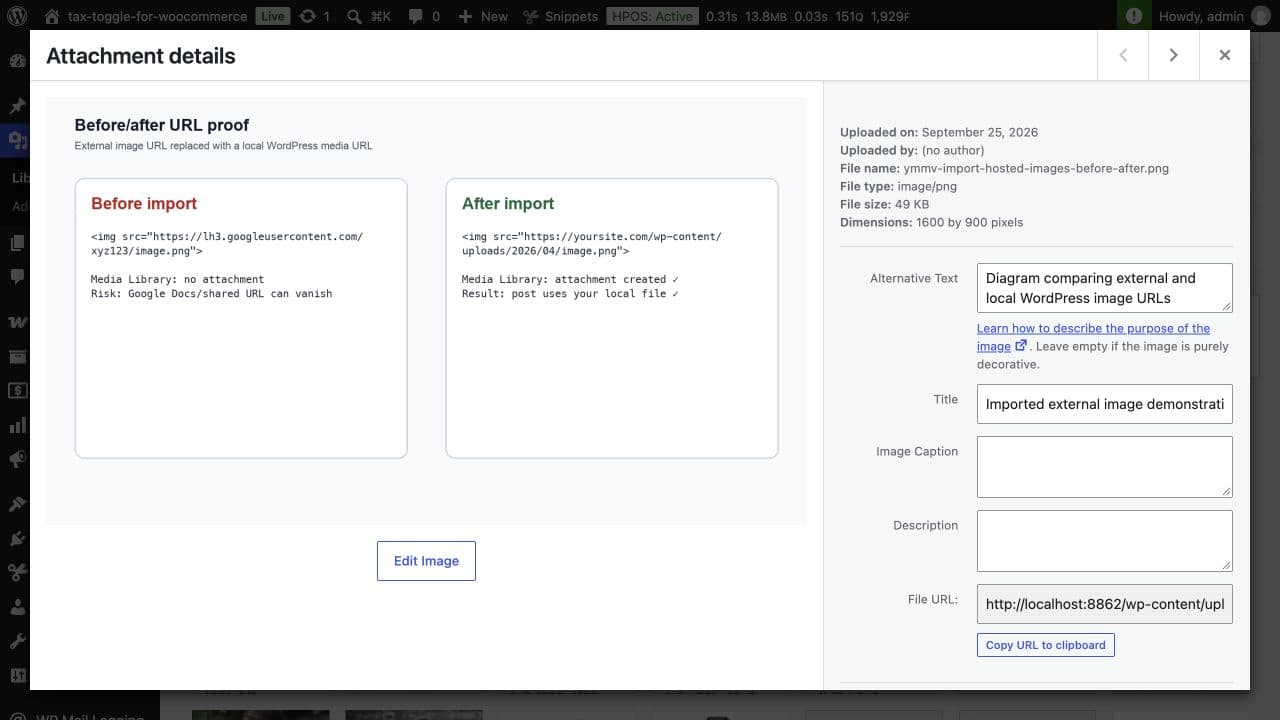
Look for:
- The imported image file.
- A sensible filename.
- Attachment details you can edit.
- Alt text if your rules add it.
3. Confirm the post uses the local URL
Open the post again and check that the image URL now points to your WordPress site, not the original external host.
This is the real success condition. If the Media Library has a copy but the post still points at the old URL, the workflow has only done half the job.
4. Check the front end
View the published post or preview. Confirm that the image loads correctly, is the right size, and does not break the layout.
5. Test a failure case
Use a bad or blocked image URL in a test post and make sure the save process behaves safely.
Automatically Import External Images is designed to continue processing other images, preserve the original external URL for failed downloads, and avoid breaking the post save. That is what you want: failures should be visible and reviewable, not catastrophic.
6. Roll out to the right post types
Once the test is clean, enable the workflow for the post types that actually need it.
For teams, explain the new behaviour simply:
- Paste content as usual.
- Save the post.
- Eligible external images, except those on excluded domains, are copied into Media Library.
- Check the post before publishing.
Do not make editors learn a migration system. That defeats the point.
What about bulk importing old content?
Auto-import on save solves the future workflow. Old content may need a separate pass.
For existing archives, use a safer process:
- Back up files and database.
- Test on staging.
- Start with a small batch.
- Review imported images and replaced URLs.
- Check failed URLs.
- Increase batch size only after the first run behaves.
Bulk image import is not bad. Blind bulk image import is bad.
If your old posts include a mix of licensed supplier images, old owned domains, unknown third-party URLs, and intentional CDN URLs, do not import everything in one go. Sort the sources first.
How WordPress handles image URLs under the hood
For developer-led imports, WordPress provides media_sideload_image(). The developer reference says it downloads an image from a URL, saves it as an attachment, can associate it with a post, and returns HTML, a source URL, an attachment ID, or a WP_Error.
That is the core idea behind URL-to-Media-Library importing.
But a production workflow needs more than a function call. It needs rules around:
- Which URL types and named hosts are excluded.
- Which file types are accepted.
- What happens when a download fails.
- Whether a previously replaced URL will be processed again.
- How post content is updated.
- How editors verify the result.
That is why plugin-level controls matter.
Where Automatically Import External Images fits
Automatically Import External Images is for sites that want external images imported into the Media Library as part of the normal save process.
It is useful when you want to:
- Import external images when content is saved.
- Avoid relying on editors to click manual import controls.
- Work across common WordPress editors, builders, and post types.
- Configure excluded domains and understand the conditional Allowed domains setting.
- Set filename and alt text rules.
- Resize imported images.
- Leave already-local image URLs alone on later saves.
- Keep failed downloads from breaking the post save.
It is not a licence to copy random images from the internet. It is not a replacement for reviewing important content. It is the automation layer for a workflow you have decided is safe.
Auto-import checklist
Before calling the job done, check this list:
- You have permission to use the images.
- You have a current backup.
- You tested on staging or a low-risk post.
- Excluded domains are configured, and the conditional Allowed domains behavior is understood.
- Post types are scoped correctly.
- Named CDN and intentionally external hosts are excluded.
- Query-parameter and extensionless URLs are handled cautiously.
- Filenames and alt text rules are acceptable.
- Repeat saves do not turn already-local images back into remote URLs.
- Imported images appear in Media Library.
- Post content uses local WordPress URLs.
- Failed downloads are reviewed.
That is the difference between useful automation and a very fast way to create a mess.
The short version
If you only need to fix one image, use the Image block’s manual import option.
If you already have files locally, upload them through Media Library.
If you are migrating a site, plan a controlled bulk import.
If external images keep appearing during normal publishing, Automatically Import External Images can import them into the Media Library when content is saved.
Manual cleanup solves yesterday’s problem. Auto-importing stops tomorrow’s from turning up in the first place.