
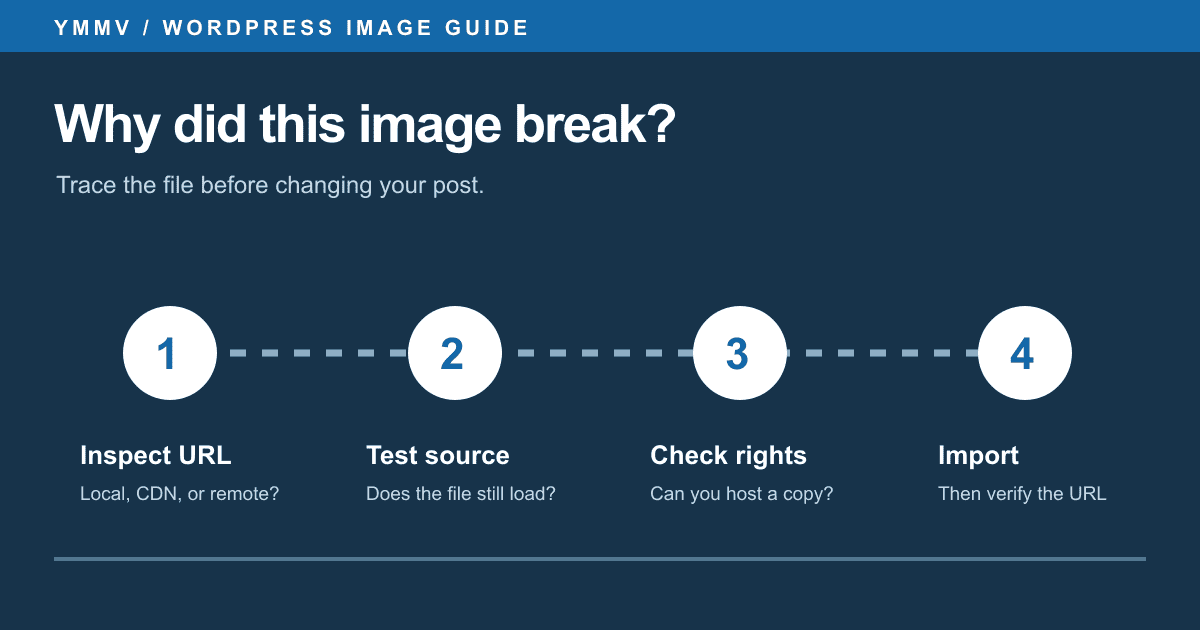
A picture can appear in a WordPress post even though the file is hosted by someone else. The page only stores a URL. If that source changes, blocks requests, or removes the file, your post may show a broken image.
The first step is to find out whether the missing file is really external. A local upload, an intentional CDN, and a hotlinked image can fail for different reasons. This guide helps you identify the source and choose a fix that fits the failure.
What counts as an external image?
An external image loads from a URL outside the media managed by your WordPress site. In the block editor, Insert from URL can display such an image without adding it to your Media Library. WordPress's Image block guide explains that the source may later move, disappear, or stop being shared.
Do not judge only by whether the hostname matches your site. A CDN on another hostname might still serve files you own and control. Ask where the original file lives and who can keep that URL available.
Diagnose a broken image before changing content
1. Inspect the image URL
Open the affected page, right-click the missing image, and inspect its src URL. You might see a path under your site's /wp-content/uploads/, a CDN URL you configured, or a third-party address.
For example, https://supplier.example/images/item.jpg points to another host. A URL under your own uploads directory usually indicates a different class of problem, such as a missing file, access rule, or cache issue.
Some images are loaded through srcset, CSS backgrounds, or a page builder. If the visible src does not explain the failure, check the actual image request in your browser's Network panel.
2. Open the source URL directly
Try the image URL in a separate tab. A 404 commonly means the file is gone or its path changed. A 403 may indicate hotlink protection or access restrictions. A successful direct load proves that the file is available to your browser now; it does not guarantee that WordPress can download it or that it will remain available.
If the URL has a token or expiry parameter, check whether it is a signed link. Import the original file you have permission to host while the link still works; saving the expiring URL in a post will leave another broken image later.
If several images fail, sample a few from different posts. A set of failures on one remote domain suggests a source-side change. A mix of local and remote URLs calls for separate fixes.
3. Check whether you can host the file
Before importing, confirm that you own the image or have permission to store and serve it. A publicly reachable URL is not a license. If the source is no longer accessible, an importer cannot recreate the lost file; request the original from its owner or restore it from a copy you are entitled to use.
Fix a recoverable external image
For one standard Image block, edit the post and use the block's Upload to Media Library control. Save, then verify the new attachment in Media Library and confirm that the published page uses its local URL. The WordPress Image block documentation describes this manual route.
If you already have the source file, upload it through Media → Add New and replace the old image in the post. Check the image's alt text and caption while editing. This is often the clearest fix for a handful of files.
For an ongoing workflow, Automatically Import External Images can import supported remote images when content is saved and replace their URLs in supported content. Check its post-type settings, exclude any intentional CDN host, test one post, and inspect the saved result before relying on it for regular publishing. It cannot fix a remote URL that has already stopped serving the file.
The key test is the saved page, not the editor preview. Confirm that the file exists in Media Library and that the page's image URL points to media you control.
A real before-and-after import
We tested Automatically Import External Images 1.0.1 on an isolated local WordPress site on 25th September 2026. The example post used a YMMV-owned image served from ymmv.co, which was external to the local test site. Before import, its saved HTML pointed to:
https://ymmv.co/wp-content/uploads/2026/09/ymmv-wordpress-external-images-diagnosis.png
After we activated the plugin and saved that post, its HTML pointed to:
http://localhost:8879/wp-content/uploads/2026/09/ymmv-wordpress-external-images-diagnosis.png
WordPress created Media Library attachment 17 for the image and associated it with the test post. The imported file loaded from the new URL, and a byte-for-byte comparison matched the source. The localhost address belongs only to the test site; a real site uses its own Media Library URL. This test shows a working import for one accessible image we own, so check your own sources and settings with a small sample before processing many posts.
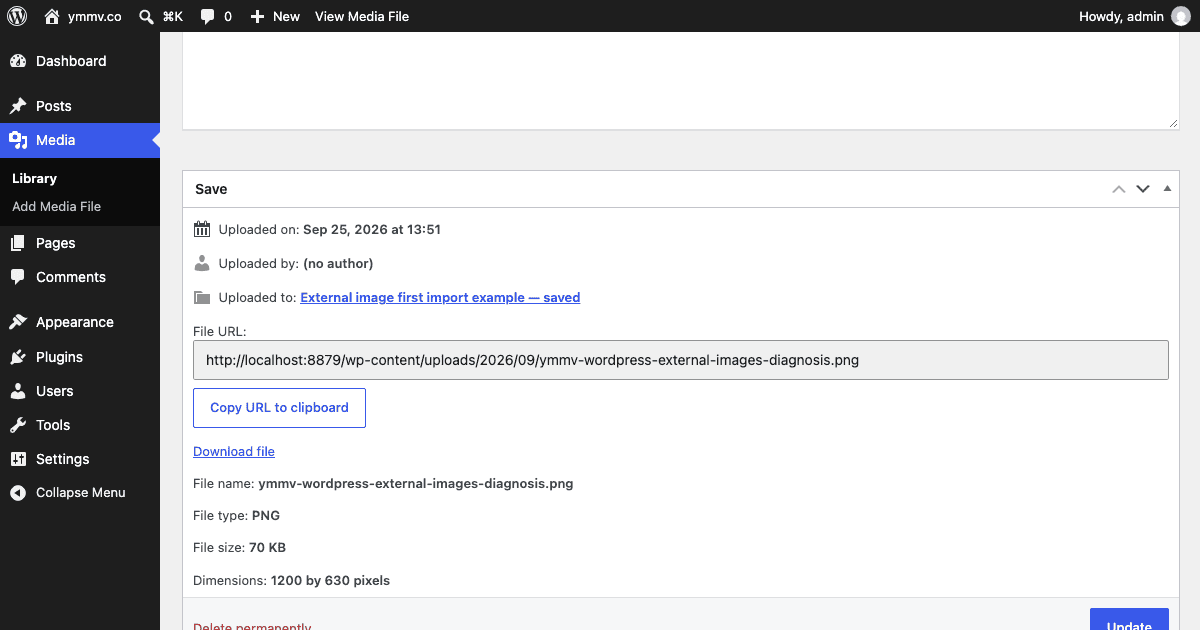
Screenshot from our isolated WordPress test on 25th September 2026. The image and source URL are YMMV-owned; no production post was changed for this example.
Domain setting to check in version 1.0.1: In a separate local test, Excluded domains stopped an image from a named host from being imported. Allowed domains did not work as a whitelist for a normal .jpg URL when the extensionless-image option was off: the plugin imported an image from a host outside that list. Do not rely on Allowed domains to limit normal image imports in this version. Test exclusions with your own CDN and sources before a large publishing run.
When local images still fail
If the broken URL already points to your own uploads or CDN, importing another copy may hide the symptom without fixing the cause. Check the file on disk or object storage, your CDN or cache configuration, access rules, and whether a migration changed paths or HTTPS settings. A Media Library attachment record alone does not prove its file exists.
When a CDN serves your own uploads, verify the origin file and the CDN URL separately. If the origin loads but the CDN does not, investigate the delivery layer before editing every post.
Prevent the same failure next time
- Upload files you own into the Media Library as part of the publishing workflow.
- After pasting content from another site or tool, inspect image sources before publication.
- Add intentional CDN hosts to Excluded domains when using an importer, then verify those images remain untouched in a test post.
- When migrating content, test a small batch and confirm both attachments and rewritten page URLs.
- Review a sample of published pages periodically for image requests that fail.
If you need to compare manual, scripted, and automatic import methods, read how to import hosted images into WordPress.
External images are fixable when the source file is still accessible and you have the right to host it. Diagnose the URL first, import the file when appropriate, and verify that the page uses the new local asset.