
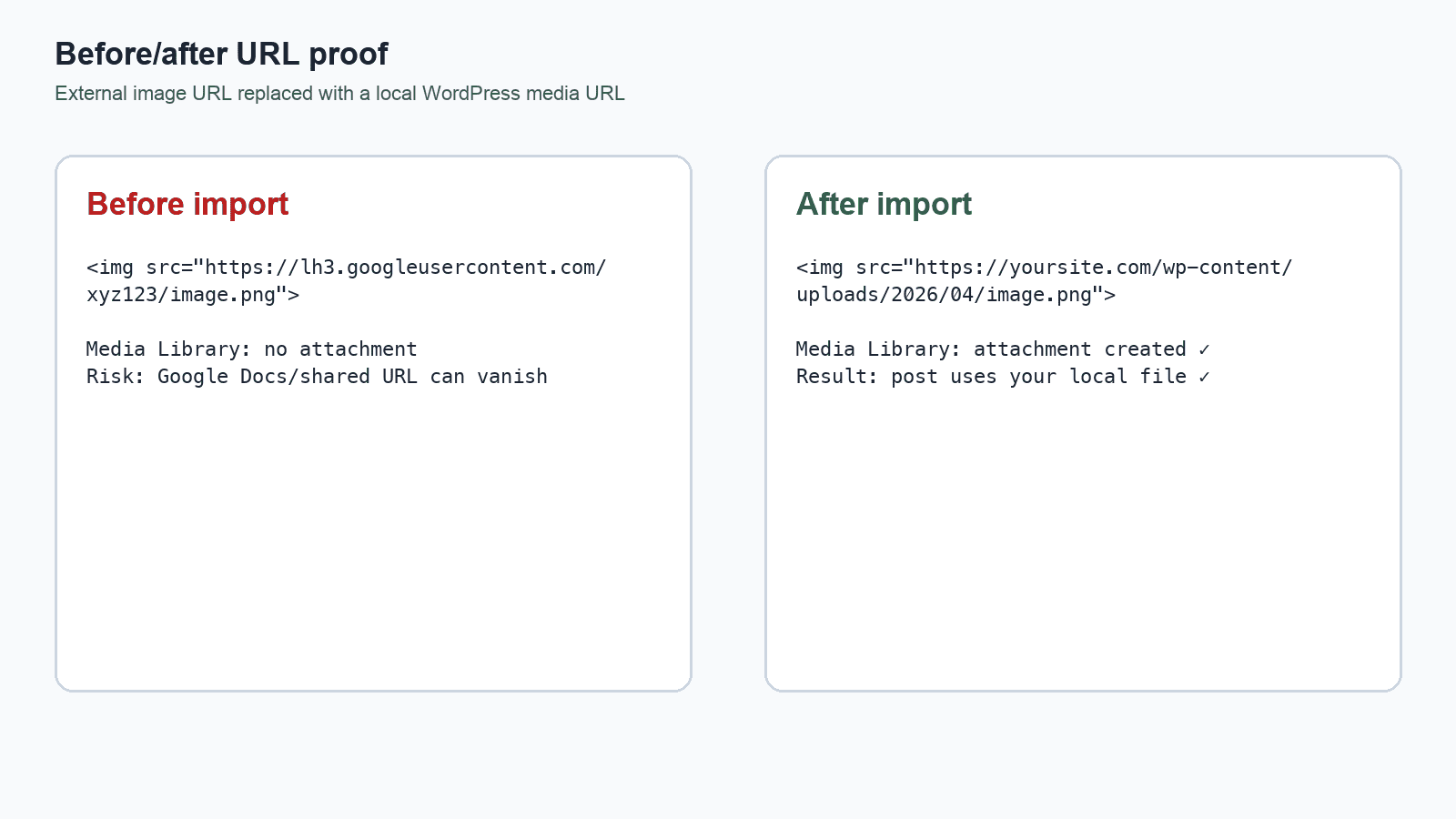
An image can look perfectly normal in a WordPress post while still loading from someone else's server. This often happens when you paste content from another tool, import posts from an old site, or use a supplier's product description. If that server changes or removes the file, the image in your post can disappear too.
To bring the image under your site's control, you need to download it into the WordPress Media Library and update the post to use the new local URL. This guide covers four ways to do that, from fixing one Image block to handling external images as part of your publishing workflow.
Check whether an image is external
Open the page, inspect the image URL, and compare its hostname with your site's domain. A remote CDN is not automatically a problem: many sites deliberately serve their own media through a CDN. The question is whether the image is managed by your site or depends on a source you cannot control.
An image inserted with the Image block's Insert from URL option remains remote until you use Upload to Media Library. WordPress's Image block guide says that an image left at its original URL may stop displaying if the source is moved, deleted, or no longer shared.
Before copying any image, check that you own it or have permission to host it. A working download URL does not grant usage rights.
Option 1: Import one image in the block editor
For a small number of images in standard Image blocks, WordPress already has a manual import control:
- Edit the post or page and select the Image block that uses the external URL.
- Choose Upload to Media Library in the block toolbar.
- Save the post.
- Check the Media Library for the new attachment and confirm the post now uses your site's image URL.
This is a good one-off fix. It can fail when the source blocks downloads or embedding, and it still relies on an editor finding every remote image.
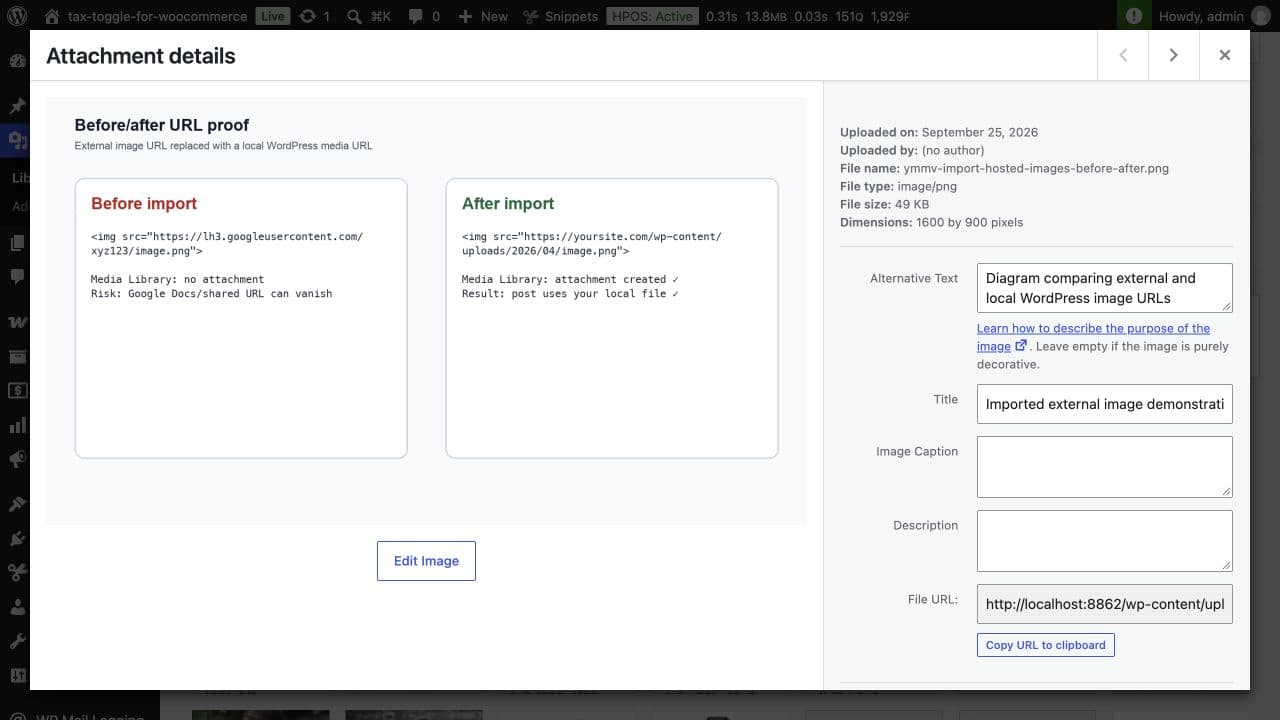
In a local WordPress demo, the imported file appears as an attachment with its own Media Library URL and editable alt text. Check those details after any import rather than relying on the editor preview alone.
Option 2: Upload a file yourself
If you already have the image file, upload it through Media → Add New, replace the remote image in the post, and save. Review its filename, alt text, and caption while you are there.
This gives you control over each file, but it is slow when external URLs are spread across many posts or product descriptions.
Option 3: Use a controlled developer import
WordPress provides `media_sideload_image()` for downloading an image URL and saving it as a Media Library attachment. A migration script can use it to import files, associate them with posts, and then replace the old URLs in content.
The function is only one part of the job. A safe script must also decide which domains and file types to accept, handle failed downloads, avoid unwanted duplicates, and check the updated content. Use this route for a planned migration that you can test before running across an archive.
Option 4: Import external images when content is saved
If editors regularly paste content containing remote images, repeating a manual import is a fragile process. Automatically Import External Images scans supported content when it is saved, imports external images into the Media Library, and replaces their URLs with local ones.
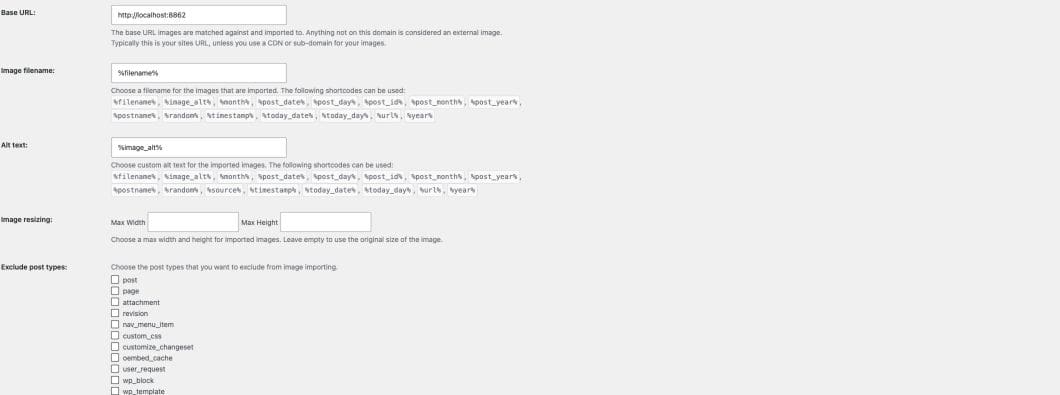
Its settings let you choose post types, exclude domains, define filename and alt-text patterns, limit image dimensions, and handle certain URLs with query parameters or no normal image extension. In version 1.0.1, Allowed domains is checked only for extensionless image URLs when that option is enabled; it is not a general allowlist. Test your sources before using automatic import on important content.
The settings below are from the plugin running on a local WordPress demo. The base URL tells it which images are already local; filename and alt-text patterns control the imported attachment.
Automatic import on save solves an ongoing editorial problem. If you need to repair an existing archive, plan that as a separate bulk cleanup and review the results in small batches.
A practical import checklist
- Find the source. Check whether external images came from a previous domain you own, an editorial tool, a supplier feed, or a CDN you intentionally use.
- Check permission. Import only files you are allowed to host.
- Set boundaries. Exclude intentional CDN images, tracking pixels, badges, and unknown third-party domains. Limit the post types and URL patterns you process.
- Test one post. Save a low-risk post with a known external image. Confirm the image appears in the Media Library and the saved post uses the local URL.
- Inspect the result. Check the front end, alt text, filename, and any failed imports. An image appearing in the editor does not prove it has been saved locally.
Common problems
The source blocks downloads. Some hosts allow an image to appear in a browser but prevent WordPress from downloading it. Ask the owner for the file, import it manually if permitted, or leave it out.
The URL contains parameters or lacks a file extension. Image services often use URLs that do not end in .jpg or .png. Only enable broader import rules for trusted sources. WordPress's standard media_sideload_image() has its own default extension checks.
You already have the file. Compare the imported attachment with existing Media Library items before doing a large cleanup. Version 1.0.1 does not generally deduplicate identical files from different remote URLs, so check for duplicate attachments and review the resulting post content.
An import fails. Confirm that the original remote URL was not replaced with a broken local one, then check the source URL, permissions, file type, and server limits before retrying.
Choose the method that fits the job
Use the Image block's import control for a few visible images. Upload files manually when they are already on your computer. Use a tested script for a one-time migration. If external images keep entering new content, make import on save part of the publishing workflow.
The final check is the same in every case: the file exists in your Media Library, the post points to your site's image URL, and you have the right to use it.